For the complete documentation index, see llms.txt. Markdown versions of all docs pages are available by appending .md to any docs URL.
Transform requests
Verified : Code examples on this page have been automatically tested and verified.Dynamically compute and set LLM request fields using CEL expressions.
Use LLM request transformations to dynamically compute and set fields in LLM requests using Common Expression Language (CEL)CEL (Common Expression Language)A simple expression language used throughout agentgateway to enable flexible configuration. CEL expressions can access request context, JWT claims, and other variables to make dynamic decisions. expressions. Transformations let you enforce policies such as capping token usage or conditionally modifying request parameters, without changing client code.
Use the following table to choose the field for what you want to change.
| What you want to change | Setting to use | Guide |
|---|---|---|
| Fields in the LLM request body, by the names that the client sent | transformation | Configure LLM request transformations |
| Fields in the LLM request body, by the names that the provider receives after agentgateway converts the request | finalTransformation | Transform requests after provider conversion |
| A header to a fixed value | requestHeaders, which needs no CEL | Example: Set the Anthropic workspace header |
| A header to a value that is computed from the incoming request | requestTransformation | Modify the HTTP request to the provider |
| The complete set of headers, the whole request body, or request metadata | requestTransformation, with replace, body, or metadata | Modify the HTTP request to the provider |
To learn more about CEL, see the following resources:
Note
Try out CEL expressions in the built-in CEL playground in the agentgateway UI before using them in your configuration.
Before you begin
Install theagentgateway binary.Configure LLM request transformations
Configure a transformation that caps
max_tokensto 10, regardless of what the client requests. You can configure the transformation in the UI or in your configuration file.Start agentgateway with a model that has no transformation.
cat <<'EOF' > config.yaml
# yaml-language-server: $schema=https://agentgateway.dev/schema/config
llm:
  models:
  - name: "*"
    provider: openAI
    params:
      apiKey: "$OPENAI_API_KEY"
EOF
agentgateway -f config.yaml
Open LLM > Models in the UI, such as http://localhost:15000/ui/llm/models. Click the Edit model icon for the
*model.Expand Advanced > Model policies > Transformation.
In the LLM request fields section, enter
max_tokensas the field name andmin(llmRequest.max_tokens, 10)as the CEL expression, and click Add.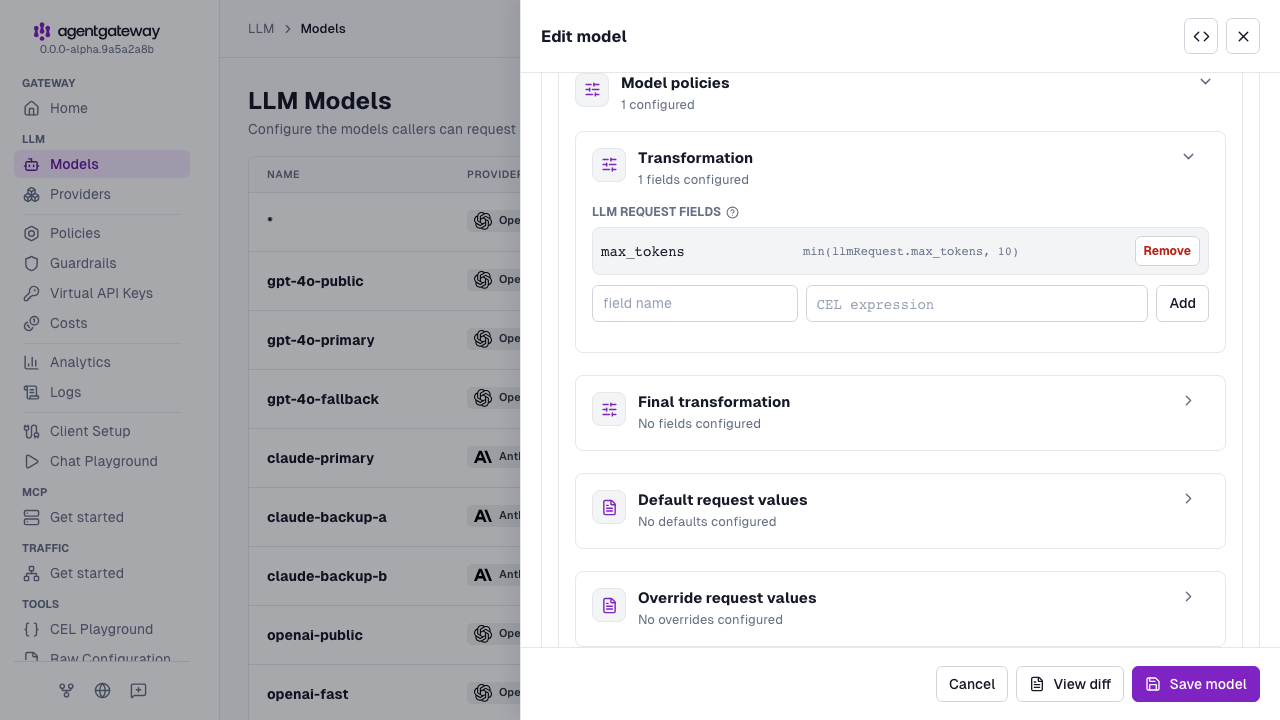
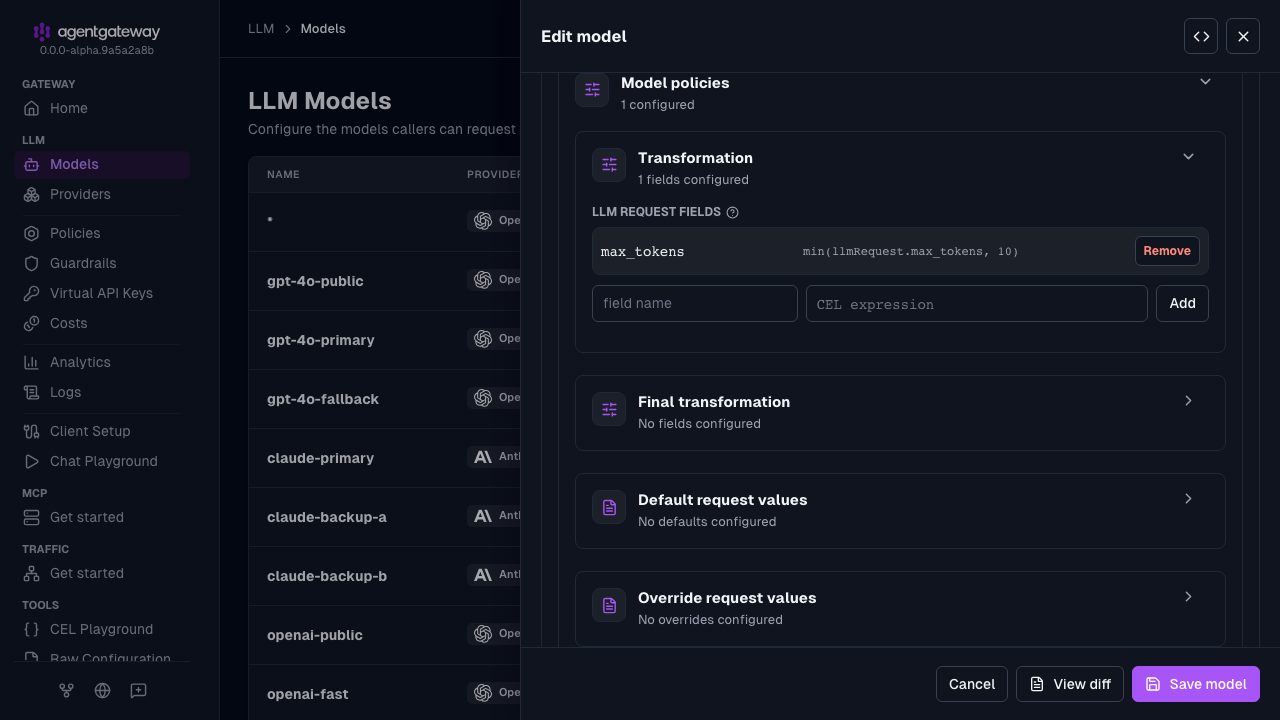
Click Save model.
The UI writes the
transformationmap that the Config file tab shows. Whether the UI can save depends on your storage mode. For more information, see Save changes from the UI.Send a request with
max_tokensset to a value greater than 1024. The transformation caps it to 10 before the request reaches the LLM provider.curl -s 'http://localhost:4000/v1/chat/completions' \ --header 'Content-Type: application/json' \ --data '{ "model": "gpt-3.5-turbo", "max_tokens": 5000, "messages": [ { "role": "user", "content": "Tell me a short story" } ] }' | jq .Example output:
{"model":"gpt-3.5-turbo-0125","usage":
{"prompt_tokens":12,"completion_tokens":10,
"total_tokens":22,"completion_tokens_details":
{"reasoning_tokens":0,"audio_tokens":0,
"accepted_prediction_tokens":0,
"rejected_prediction_tokens":0},"prompt_tokens_details":
{"cached_tokens":0,"audio_tokens":0}},"choices":
[{"message":{"content":"Once upon a time, in a quaint
village nestled","role":"assistant","refusal":null,
"annotations":[]},"index":0,"logprobs":null,
"finish_reason":"length"}],
"id":"chatcmpl-DHyGUsdgf2P5FidTbZIZFxdVGRfpq",
"object":"chat.completion","created":1773175606,
"service_tier":"default","system_fingerprint":null}%
In the response, the
completion_tokensvalue reflects a completion capped at 10 tokens.
Conditionally set fields based on headers
Use a CEL expression in the model-level transformation field to dynamically set max_tokens based on the caller’s identity from a request header. This example gives admin users a higher token limit than regular users.
You can configure the transformation in the UI or in your configuration file.
- If agentgateway is not running yet, start it with the configuration from step 1 of Configure LLM request transformations.
- Open LLM > Models, and click the Edit model icon for the
*model. - Expand Advanced > Model policies > Transformation.
- In the LLM request fields section, set the
max_tokensfield.- If the field is already in the list, click Remove next to it.
- Enter
max_tokensas the field name andrequest.headers['x-user-id'] == 'admin' ? 100 : 10as the CEL expression, and click Add.
- Click Save model.
Send a request as an admin user and verify the response uses the higher token limit.
curl -s http://localhost:4000/v1/chat/completions \
  -H "Content-Type: application/json" \
  -H "x-user-id: admin" \
  -d '{
    "model": "gpt-3.5-turbo",
    "messages": [{"role": "user", "content": "Tell me a story"}]
  }' | jq .
Send a request as a regular user and verify the response is capped at the lower token limit.
curl -s http://localhost:4000/v1/chat/completions \
  -H "Content-Type: application/json" \
  -H "x-user-id: alice" \
  -d '{
    "model": "gpt-3.5-turbo",
    "messages": [{"role": "user", "content": "Tell me a story"}]
  }' | jq .
In the responses, the admin user receives up to 100 completion tokens while the regular user is capped at 10.
Transform requests after provider conversion
The transformation field runs before agentgateway converts the request into the format that the provider expects. To write one, you must know how the conversion works, and you cannot change a field that the conversion itself adds.
The finalTransformation field runs after the conversion instead. You only need to know the shape of the target API.
The difference shows in the field names. When a client sends max_tokens to an OpenAI provider, the conversion renames the field to max_completion_tokens, so the provider receives the following request body.
{
  "model": "gpt-3.5-turbo",
  "max_completion_tokens": 5000,
  "messages": [{"role": "user", "content": "Tell me a short story"}]
}
A transformation entry must target max_tokens, the name that the client sent. A finalTransformation entry must target max_completion_tokens, the name that the provider receives.
Configure a final transformation that caps the converted field and removes a field from the provider request. The
min()expression capsmax_completion_tokensat 10. Thefail("remove")expression always fails to evaluate, which deletesreasoning_effortfrom the request. You can configure the transformation in the UI or in your configuration file.If agentgateway is not running yet, start it with a model that has no transformation.
cat <<'EOF' > config.yaml
# yaml-language-server: $schema=https://agentgateway.dev/schema/config
llm:
  models:
  - name: "*"
    provider: openAI
    params:
      apiKey: "$OPENAI_API_KEY"
EOF
agentgateway -f config.yaml
Open LLM > Models, and click the Edit model icon for the
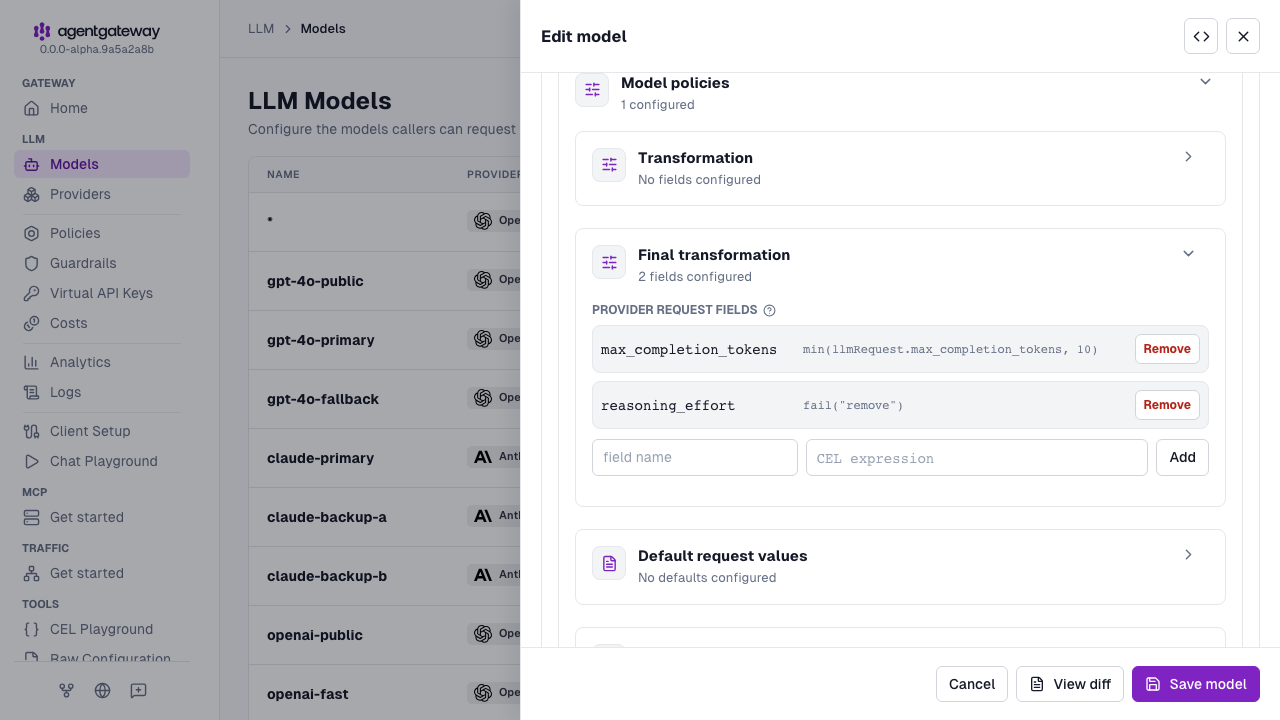
*model.Expand Advanced > Model policies. If the Transformation section has entries from a previous section, click Remove next to each one.
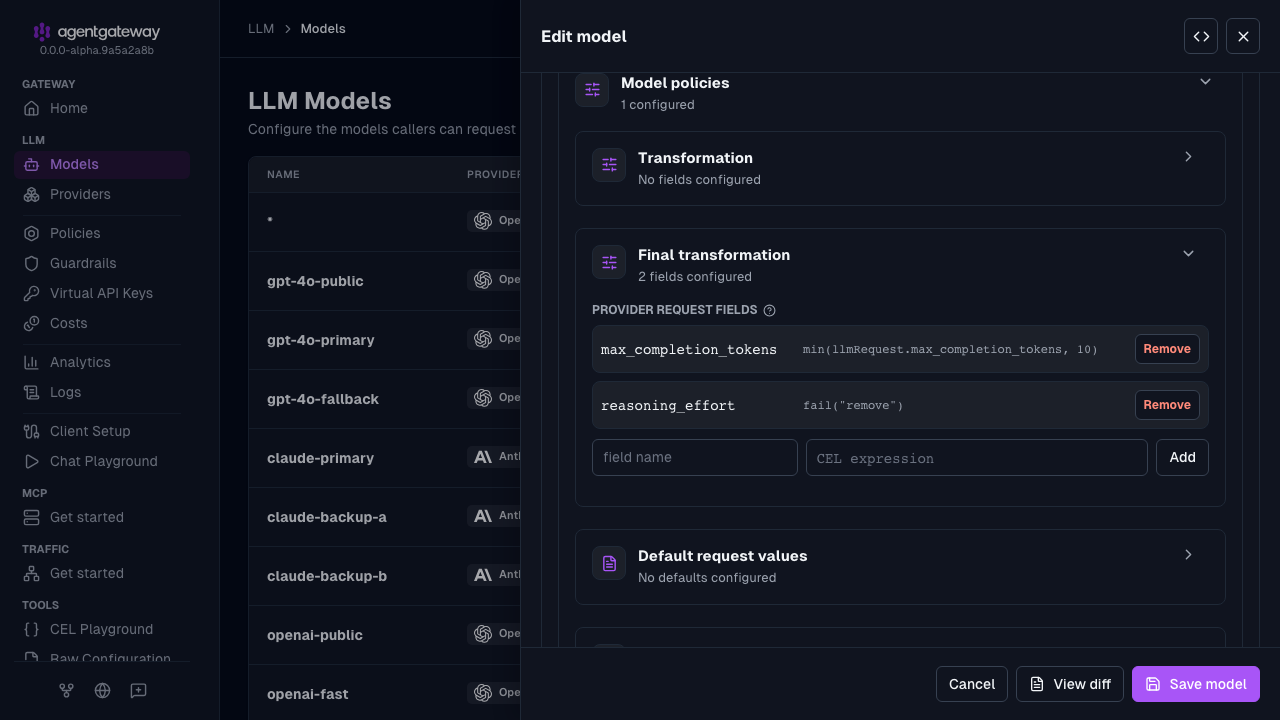
Expand Final transformation. In the Provider request fields section, add each of the following fields. For each field, enter the field name and the CEL expression, and click Add.
max_completion_tokens:min(llmRequest.max_completion_tokens, 10)reasoning_effort:fail("remove")
Click Save model.
The UI writes the
finalTransformationmap that the Config file tab shows.Send a request that sets
max_tokensandreasoning_effort. The conversion renamesmax_tokenstomax_completion_tokens, and the transformation then caps that field at 10 and dropsreasoning_effort.curl -s 'http://localhost:4000/v1/chat/completions' \ --header 'Content-Type: application/json' \ --data '{ "model": "gpt-3.5-turbo", "max_tokens": 5000, "reasoning_effort": "high", "messages": [ { "role": "user", "content": "Tell me a short story" } ] }' | jq .Example output:
{"model":"gpt-3.5-turbo-0125","usage":
{"prompt_tokens":12,"completion_tokens":10,
"total_tokens":22},"choices":
[{"message":{"content":"Once upon a time, in a quaint
village nestled","role":"assistant"},"index":0,
"finish_reason":"length"}],
"id":"chatcmpl-DHyGUsdgf2P5FidTbZIZFxdVGRfpq",
"object":"chat.completion","created":1773175606}%
The
completion_tokensvalue reflects a completion capped at 10 tokens, which confirms that the transformation reached the converted request.
Modify the HTTP request to the provider
Use requestTransformation to change the HTTP request that agentgateway sends to the provider, such as its headers or metadata. For a header with a fixed value, use requestHeaders instead, which needs no CEL. If both set the same header, the requestHeaders value is sent, because requestHeaders runs after requestTransformation.
The requestTransformation expressions can read the HTTP request, such as request.headers. For parsed JSON LLM request bodies, they can read fields such as llmRequest.model. They can also read llm.requestModel, the model from the incoming URL or body before provider overrides. To change individual fields in the LLM request body, use transformation or finalTransformation. You can set either one together with requestTransformation on the same provider or model.
The UI has no field for requestTransformation. Use your configuration file for the steps in this section.
Create a configuration file that selects an OpenAI project from a client header. The provider default sets the
openai-projectheader based on thex-teamrequest header, and removesx-teamso that it is not sent to OpenAI. Thegpt-4o-batchmodel sets its ownrequestTransformation, which replaces the provider default for that model.Warning
Because a model-level
requestTransformationreplaces the provider default completely, the model loses every setting in the default, not only the ones it overrides. In the following example,gpt-4o-batchrepeatsremove: [x-team]. Without that line, requests togpt-4o-batchwould send thex-teamheader to OpenAI.cat <<'EOF' > config.yaml # yaml-language-server: $schema=https://agentgateway.dev/schema/config llm: providers: - name: openai-prod provider: openAI params: apiKey: "$OPENAI_API_KEY" defaults: requestTransformation: set: openai-project: '"x-team" in request.headers && request.headers["x-team"] == "research" ? "proj_research" : "proj_default"' remove: - x-team models: - name: gpt-4o provider: reference: openai-prod params: model: gpt-4o - name: gpt-4o-batch provider: reference: openai-prod params: model: gpt-4o-mini requestTransformation: set: openai-project: '"proj_batch"' remove: - x-team EOFSetting Description llm.providers[].defaults.requestTransformationThe HTTP request transformation for every model that references the provider and does not set its own requestTransformation.llm.models[].requestTransformationThe HTTP request transformation for one model. If set, it replaces the provider default completely. The two are not merged. setHeaders to set. Each value is a CEL expression. To set a fixed string, quote the string inside the expression, such as '"proj_batch"'.addHeaders to append. Each value is a CEL expression. removeHeader names to remove. replaceA CEL expression that returns the complete set of headers. It is applied before add,set, andremove.bodyA CEL expression that returns a replacement request body. The replacement happens before agentgateway converts the request to the provider format, and before transformationandfinalTransformationrun, so the new body must be a valid request for the API that the client called.metadataMetadata values to add. Each value is a CEL expression. If agentgateway is still running from a previous section, it reloads
config.yamlautomatically when you save the file. Otherwise, start agentgateway.agentgateway -f config.yaml
Available CEL variables
You can use these variables in your CEL transformation expressions.
| Variable | Description | Example |
|---|---|---|
request.headers["name"] | Request header values | request.headers["x-user-id"] |
request.path | Request path | request.path returns / |
request.method | HTTP method | request.method returns POST |
llmRequest.max_tokens | Original max_tokens from the request | min(llmRequest.max_tokens, 100) |
llmRequest.model | Requested model name | llmRequest.model |
Note
What llmRequest refers to depends on which field holds the expression. In a transformation entry, llmRequest is the request that the client sent. In a finalTransformation entry, llmRequest is the request after agentgateway converts it into the provider’s format.
For a complete list of available variables and functions, see the CEL reference documentation.
Common transformation patterns
Cap token usage
Enforce a maximum token limit regardless of what the client requests.
- In LLM > Models, click the Edit model icon for the model, and expand Advanced > Model policies > Transformation.
- In the LLM request fields section, enter the following field name and CEL expression, and click Add.
max_tokens:min(llmRequest.max_tokens, 1024)
- Click Save model.
Set temperature based on headers
Allow callers to control creativity through a header while enforcing bounds.
- In LLM > Models, click the Edit model icon for the model, and expand Advanced > Model policies > Transformation.
- In the LLM request fields section, enter the following field name and CEL expression, and click Add.
temperature:request.headers['x-creativity'] == 'high' ? 0.9 : 0.1
- Click Save model.
Combine multiple transformations
Apply several field-level transformations in a single configuration.
- In LLM > Models, click the Edit model icon for the model, and expand Advanced > Model policies > Transformation.
- In the LLM request fields section, add each of the following fields. For each field, enter the field name and the CEL expression, and click Add.
max_tokens:request.headers['x-user-tier'] == 'premium' ? 4096 : 256temperature:request.headers['x-user-tier'] == 'premium' ? 0.8 : 0.3
- Click Save model.
Next steps
- Learn about CEL expressions for advanced expression logic.
- Set up authentication to use JWT claims in transformations.